Updating FMS Configuration Items
The Update Configuration task helps you update multiple configuration item values for CygNet Measurement (FMS) Nodes all at once. The following steps describe how to accomplish mass configuration update tasks utilizing the Update Configuration task from the Device Data tool in the FMS Toolbox.
You must have proper security authorization to perform configuration record updates. FMS event authorization level 3 is required to complete this process. See FMS Security (and DEVCFG security event) for information about configuring security access for configuration data.
Updating Configuration Items
The following list provides an overview of the steps to update multiple configuration item values simultaneously.
- Select the Nodes - Define the FMS and Nodes you want to update.
- Define the configuration items - Define the method, details, and specific configuration item values you want to update.
- Provide recalculation information - Select the recalculation process to use when saving the record changes.
- Provide audit information - Select an audit category and enter comments to help you track your changes for future reference.
- Update configurations - Perform the update and view the results.
- Optionally repeat the process - Perform additional updates, by repeating the process using a different combination of FMS service, Nodes, update methods, and/or configuration item selections and values.
Use the following procedure to perform multiple configuration updates.
To Update Multiple FMS Configuration Items
- Start CygNet FMS Toolbox, and then click Device Data to access associated tasks.
- Click Update Configuration to access a series of four Update Configuration pages.
- For each update type (manual entry, or configuration log at a specific date/time) for which you wish to update configuration values, do the following.
- On the first page, select Nodes to update.
|
Update Configuration |
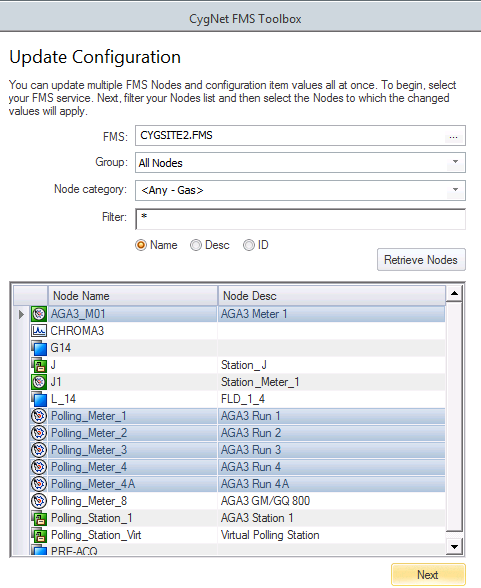
- Click ... to access the Select FMS Service dialog box, and browse to the Site.Service name containing the Nodes you wish to change. Click OK.
- Set the parameters to filter your Node selections and then click Retrieve Nodes.
- Results for retrieved Nodes are listed in columns by Node type icon, Node name and Node description. If desired, sort displayed results based on any of the available columns.
- Select Nodes to change. You may select multiple Nodes by pressing Ctrl+Click or Shift+Click.
- Click Next to continue.
- On the second page, select the configuration data source, time range, and configuration items to update for all of the selected Nodes.
|
Update Configuration |
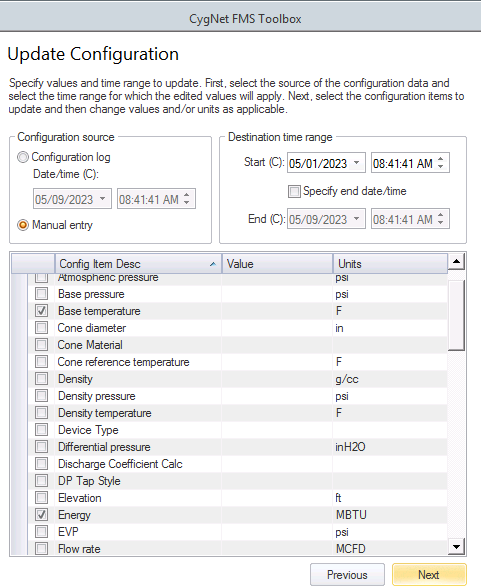
- In the Configuration source box, select the source to use for updating configuration item values.
- Click Configuration log to use a specified configuration log record as the source of your new values, and then select the Date/time, in Contract time (C), from which to read the new values.
- Click Manual entry to manually enter each new value to use as the source of your configuration item updates.
- In the Destination time range box, select the start and end date/time to describe the time range for which the changed configuration values will apply.
- Select a Start date/time, in Contract time (C), to begin using the new configuration values.
- The end date will be indefinite, by default. Click the Specify end date/time check box to select/clear the option to specify an end date. If enabled, select an End date/time, in Contract time (C), to stop using the new configuration values.
- If your selected configuration source is Configuration log values from a specific date/time, the value and units columns will not be editable. In the configuration item list, select/clear the check box next to each configuration item to include/exclude it in the update action. Optionally right-click on the grid to access the context menu to Select all, Clear all, or Select all gas quality configuration items at once.
- If your selected configuration source is Manual entry, for each configuration item you want to include in the update action, type the new value into the Value cell and then select the appropriate units. You do not need to select the check box first. Once you type each new value into the cell, and either press Enter or proceed to another cell, the check box for the corresponding configuration item will automatically be selected. Alternatively, you can select/clear the check box next to each configuration item to include/exclude it, and then supply the new value and units for each selected item. Optionally right-click on the grid to access the context menu to Select all, Clear all, or Select all gas quality configuration items at once.
- Click Previous to go back to the Node selection page, or click Next to continue.
- On the third page, enter recalculation information to determine how to process record changes that could affect the calculation of historical records.
|
Update Configuration |
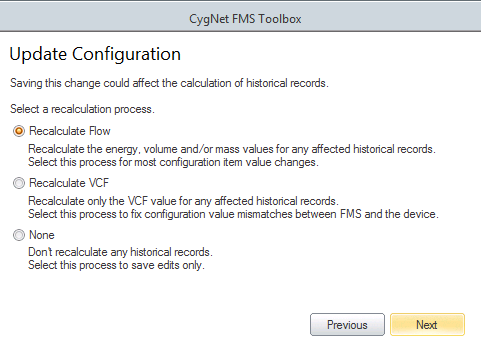
- Click a radio button to select the appropriate recalculation process from the following options.
- Recalculate flow - Select this process for most configuration item value changes. The action will recalculate the energy, and volume and/or mass values, for any affected historical records.
- Recalculate VCF - Select this process to fix configuration value mismatches between FMS and the device. The action will recalculate only the VCF value, for any affected historical records.
- None - Select this process to save your edits only. The action will not recalculate any historical records.
- Click Previous to go back to the configuration data page, or click Next to continue.
- On the fourth page, enter audit information to help track your changes in the system.
|
Update Configuration |
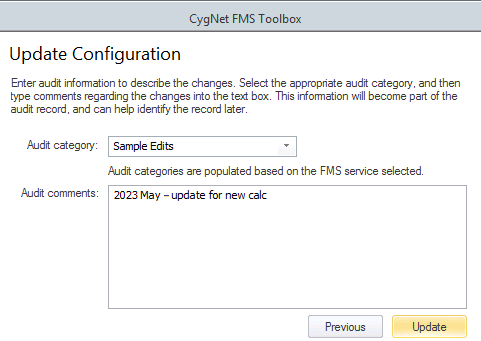
- Select an Audit category from the drop-down menu options. The menu will be populated based on the FMS Site.Service selected. Audit categories are configured on the Admin menu. See Configuring Audit Categories for more information.
- Type Audit comments into the text box. Maximum character count is 140. When you type comments about the configuration updates you are making, they will become part of the audit record. Although comments are optional, they can be helpful when auditing or reviewing records later.
- Click Previous to go back to the configuration item definition page, or click Update to update all of the configuration items you have defined, for all of the FMS Nodes you have selected.
- On the final page, view the update results and optionally choose to repeat the process.
|
Update Configuration |
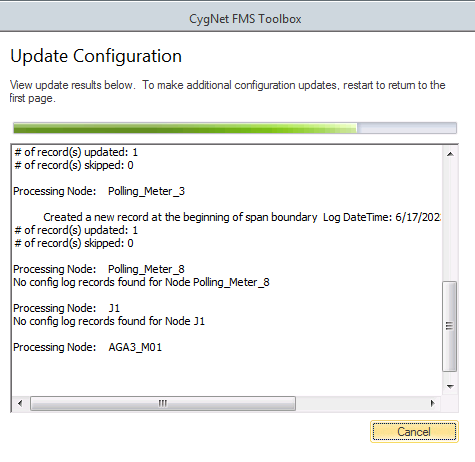
- View the results log of your configuration updates in the status box.
- Optionally click Restart to return to the first page, to make additional configuration updates using different Nodes, update methods, and/or configuration items or values. Repeat step 2 to make additional updates as desired.

Node Selection Parameters
Set the following parameters to begin filtering Node results and make Node selections for your changes.
| Parameter | Description | |
|---|---|---|
|
Group |
Select a Node Group by group type, or by category. Options are as follows.
|
|
|
Node category |
Select a Node category. Options are as follows.
|
|
|
Filter |
Select a filter. First type a partial string of known Node name/description/ID characters to populate the filter text box in the control's Chooser. Wildcard values * (multiple character) and ? (single character) are supported. Default value is * (multiple character wildcard) - all. Note: Wildcards can be used only when filtering by Name or Desc, not when filtering by ID. Then select a Node option to filter for results. Options are as follows.
|
|
|
Retrieve Nodes |
Click Retrieve Nodes to apply the selected filters and retrieve the results. Results will appear in the Node list. |
|
Node Selection Columns
You can sort the Node list results based on any of the following columns, to help with Node selection.
| Column | Description | |||||||||||||||
|---|---|---|---|---|---|---|---|---|---|---|---|---|---|---|---|---|
|
[Icon] |
Displays the icons indicating the Node type of the Nodes that meet the selected filters Node icons are as follows.
Click on the column header above the icons to sort the display (in ascending or descending order) based on Node type. |
|||||||||||||||
|
Node Name |
Lists the names of the Nodes that meet the selected filters Click on the column header to sort the display (in ascending or descending order) based on Node Name. |
|||||||||||||||
|
Node Desc |
Lists the descriptions of the Nodes that meet the selected filters Click on the column header to sort the display (in ascending or descending order) based on Node Desc. |


